How to Submit an Article to Wikipedia: A Step-by-Step Visual Guide
To submit an article to English Wikipedia, save your draft and send it for review through the Articles for Creation process.
You’ll know it worked when the box at the top of your draft says “Review waiting, please be patient.”
This guide covers English Wikipedia on a desktop browser. Button locations can shift with your screen size and settings.
Step 1: Create an Account
You can submit a draft without an account, but an account keeps your draft, your disclosure and any replies in one place. If you’re being paid, Wikipedia’s paid-contribution policy requires a registered account.
Open Create account, also linked at the top right of every Wikipedia page. Fill in a username and password, then click Create your account. You may see a security check first.
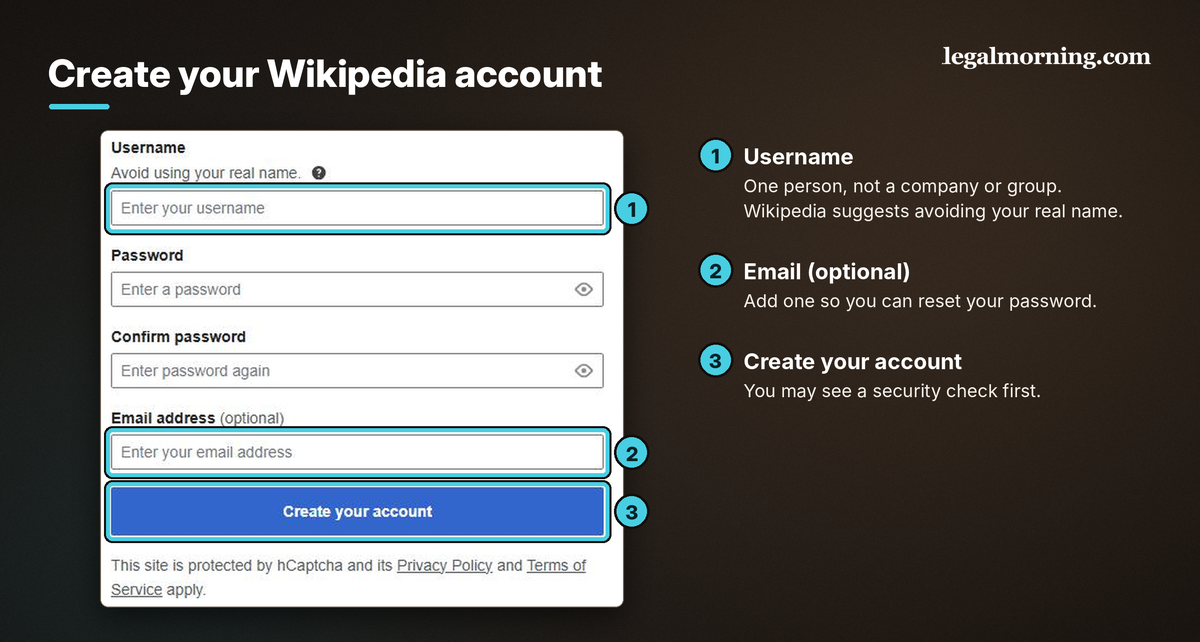
I recommend adding an email address so you can reset your password.
Pick a username for one person. A username that’s only a company or group name, such as AcmeWidgets or Acme Marketing Team, isn’t allowed.
Find your user page and contributions
Once you’re signed in, two shortcuts take you straight to your own pages:
- Special:MyPage opens your user page.
- Special:MyContributions lists every page you’ve edited, newest first.
You can also type either one into Wikipedia’s search box, or reach Contributions from the menu under the person icon at the top right.
If you’ve lost track of your draft, open your contributions and look for a page that starts with “Draft:”.
Step 2: Disclose Your Connection
If you’re writing about yourself, a relative, your employer or a client, you have a conflict of interest. Tell Wikipedia before you submit.
If you’re connected to the subject but no one is paying you, Wikipedia’s conflict of interest guideline says you should disclose the connection.
If you’re paid, or expect to be paid, for the work, disclosure is required. That includes an employee writing about their employer as part of the job. The Wikimedia Foundation’s Terms of Use require you to disclose each employer, client, intended beneficiary and affiliation for that work.
You can place that disclosure in any of three places: your user page, the talk page that goes with your contribution, or the edit summary. The user page is the easiest place to keep it.
Your user page is not your draft
Your user page identifies you as an editor. Its title starts with User: followed by your username. The draft about your subject is a separate page.
For this walkthrough, put the disclosure on your user page.
Open your user page in the source editor
Paste the examples below into the source editor, the plain text box that displays code such as {{ and [[.
- Open your user page.
- Click Edit source. If your user page doesn’t exist yet, the tab says Create source.
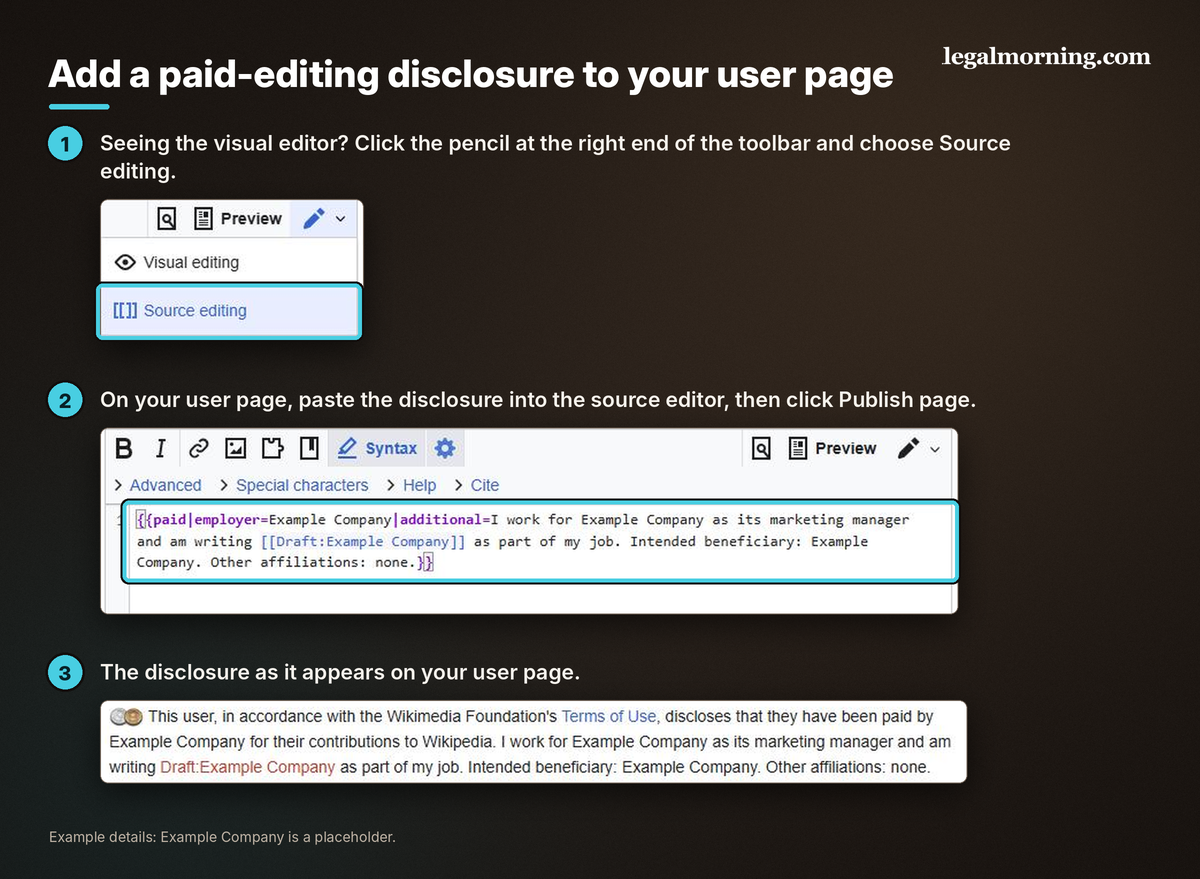
- If you see the page as readers see it instead of a text box, you’re in the visual editor. Click the pencil icon at the right end of the toolbar and choose Source editing.
Disclosures you can copy
Copy the example that fits you. Replace the capital-letter placeholders with your details. Keep the curly and square brackets, which are part of the code.
If you work for the company you’re writing about:
{{paid|employer=COMPANY NAME|additional=I work for COMPANY NAME as JOB TITLE and am writing [[Draft:DRAFT TITLE]] as part of my job. Intended beneficiary: COMPANY NAME. Other affiliations: NONE, OR LIST THEM.}}
When an agency or firm you work for was hired by a client:
{{paid|employer=YOUR FIRM|client=CLIENT NAME|additional=CLIENT NAME hired YOUR FIRM, where I work, to write [[Draft:DRAFT TITLE]]. Intended beneficiary: CLIENT NAME. Other affiliations: NONE, OR LIST THEM.}}
If the client pays you directly as a freelancer, put the client’s name after employer= and delete the client= part.
Then click Publish page, or Publish changes if your user page already existed.
If no one is paying you
The Article Wizard suggests a shorter box for an unpaid connection. Add one plain sentence after it that says what the connection is:
{{UserboxCOI|1=Draft:DRAFT TITLE}}
I have a conflict of interest with [[Draft:DRAFT TITLE]]: DESCRIBE THE CONNECTION, SUCH AS "THE FOUNDER IS MY BROTHER." I am not paid for this editing.
The sentence explains your connection to the subject.
For more on where disclosures go and how to word them, see my Guide to Disclosing a Wikipedia Conflict of Interest and Requesting Edits.
Step 3: Create and Save Your Draft
Check whether your sources provide:
- Reliable reporting. Does the publisher check and edit what it publishes?
- Independent reporting. Press releases, sponsored content and the subject’s own statements come from the subject. A journalist may also include independent research in a piece that quotes or interviews the subject.
- In-depth coverage. Does the source discuss your subject in detail?
If you have only passing mentions or material from the subject, look for substantial independent coverage before submitting.
Start in the Article Wizard
Open the Article Wizard and work through its screens:
- On the Welcome screen, click Next.
- At Referencing and notability, read the source rules and click Next.
- On Common mistakes, choose the button that describes you: I’m paid to edit or I’m writing about my employer; I’m writing about myself, or a close person/subject; or I’m not connected to the subject.
- If you chose one of the first two, follow the disclosure steps, then click I have disclosed and Next.
- On Draft Creation, type your title in the box. Wikipedia adds “Draft:” to the front for you. Click Create new article draft.
Write in the source editor
The source editor opens with starter code:
- The code at the top adds the review box you’ll use in Step 4. Leave it there.
- A References heading with {{reflist}} sits at the bottom. That’s where your citations will be listed.
Write your text in between. Put a citation right after the sentence it supports, using the “Cite” drop down in the toolbar to build a formatted reference. The screenshot shows the resulting {{cite news}} code.
Write the draft yourself. Step 4 explains the limited uses of AI and the submission form’s disclosure field.
Preview, then save
Show preview lets you check that each citation appears under References before you save. Then click Publish page.
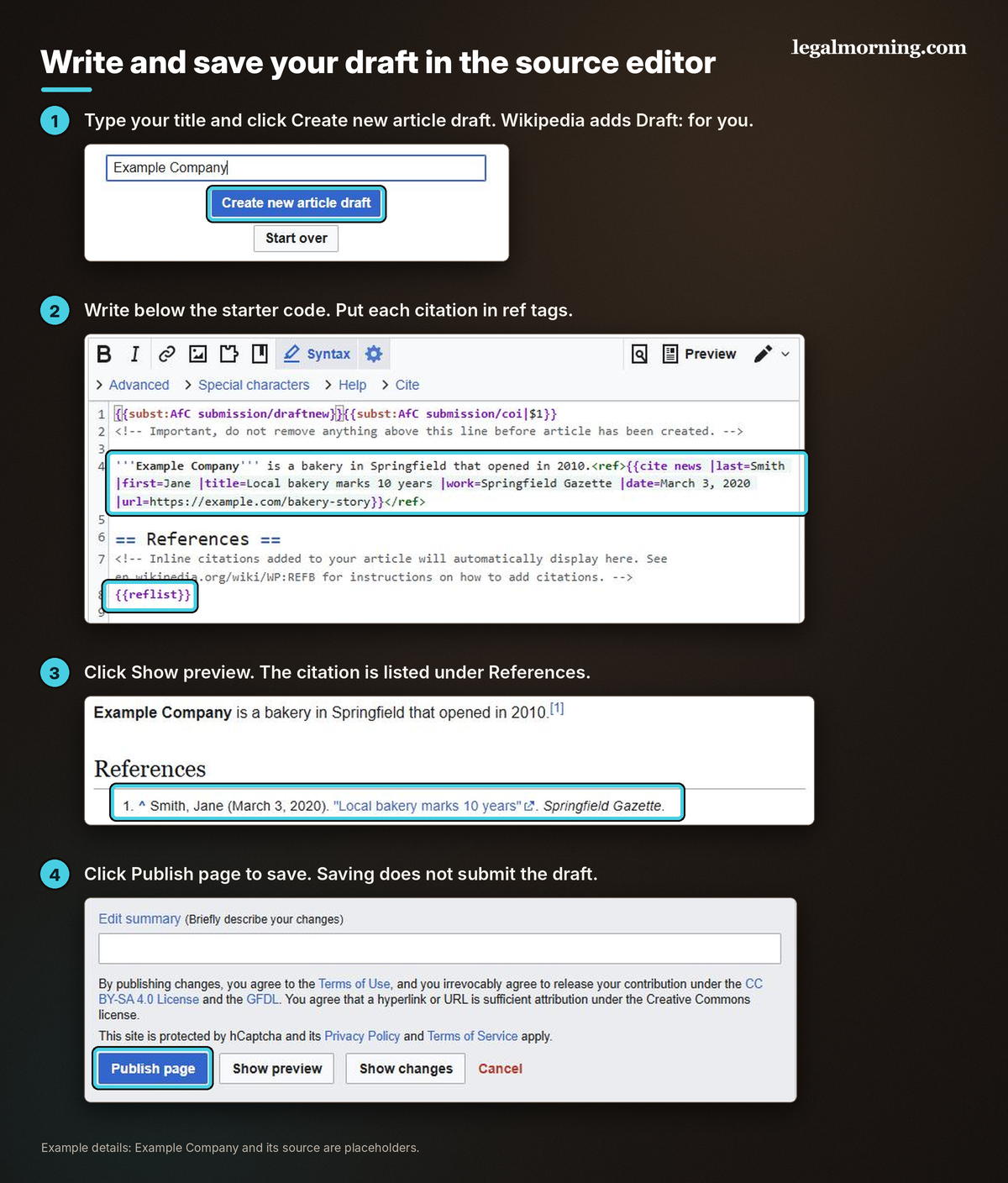
Publish page saves the public draft. Submit it separately in Step 4. For later edits, the save button reads Publish changes.
Once saved, your draft is public at an address that starts with Draft:. Anyone with the link can read it, though drafts are generally kept out of search engines. The box at the top warns that a draft left unedited for six months may be deleted.
If you’d rather use the visual editor
You can switch any time with the pencil icon at the right end of the toolbar. The visual editor shows the page as readers will see it. To add a citation there, click Cite in its toolbar and paste a link or fill in the form.
Leave the review box at the top in place in either editor.
Step 4: Submit Your Draft for Review
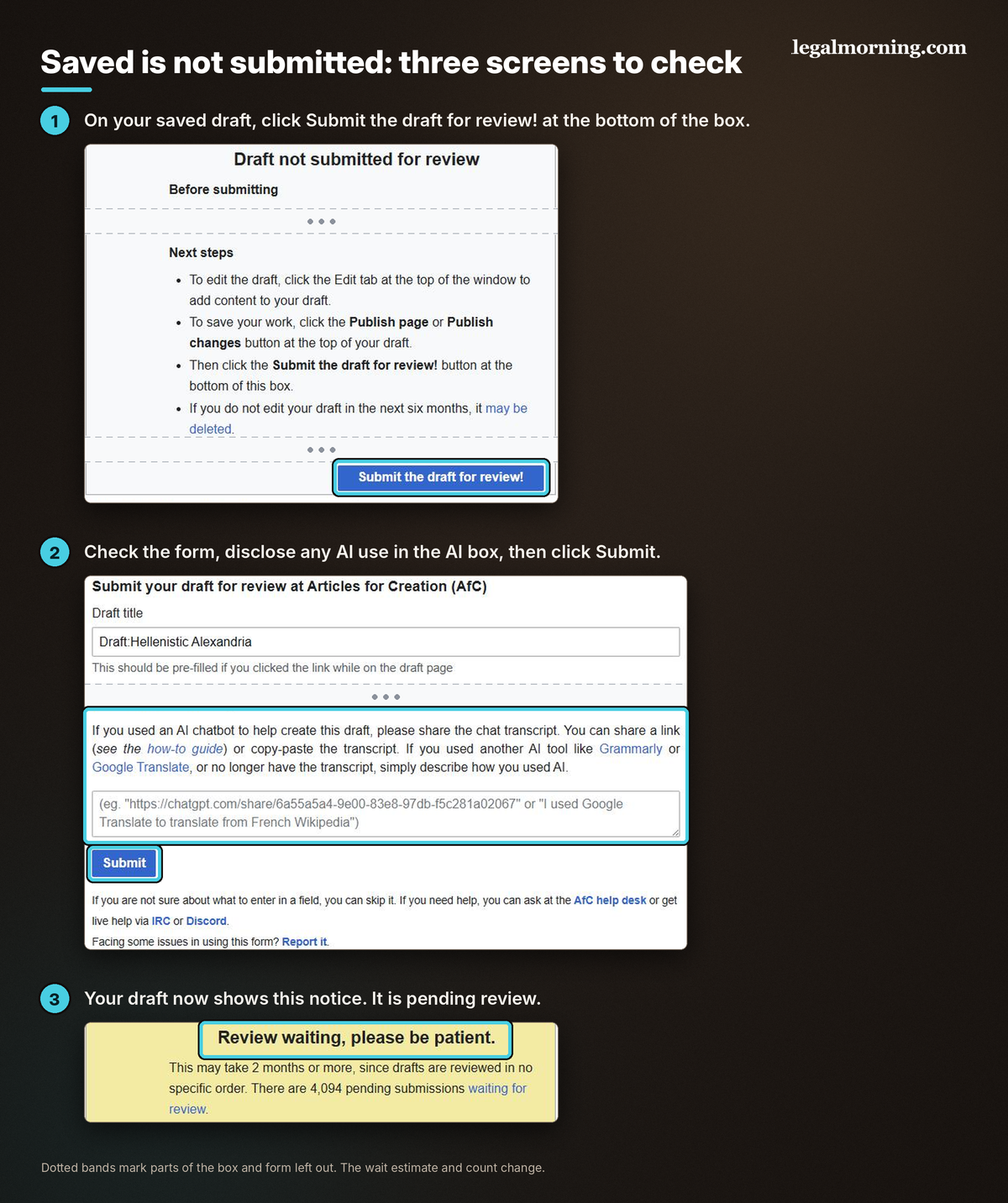
On your saved draft, click Submit the draft for review! at the bottom of the “Draft not submitted for review” box. The button appears only after you’ve saved the draft at least once.
The submission form contains:
- Draft title, already filled in when you open the form from your draft.
- A list of subject categories, with Other already selected.
- Short description, two to five words.
- WikiProject classification tags.
- An AI disclosure box.
The form says you can skip a field you’re unsure about. Click Submit. You may get a security check. Wikipedia says “Submission succeeded” and returns you to your draft.
Disclose any AI use
In the AI disclosure box, explain any AI assistance:
- If you used a chatbot like ChatGPT, paste a share link to the conversation or paste the transcript.
- If you used a tool like Grammarly or Google Translate, or no longer have the transcript, describe what you used it for.
Your explanation is published as a comment on the draft.
Disclosure doesn’t automatically cause a decline. Reviewers may make changes or ask you to make them. You remain responsible for the text and sources.
Be upfront about how the draft was prepared. Concealing AI use can undermine a reviewer’s trust in your submission.
For article text, Wikipedia’s guideline on large language models allows two uses:
- Having AI suggest fixes to your own writing for spelling, punctuation, grammar and similar simple mistakes. You review each change and make sure the text is still supported by your sources.
- Translating an article from another language’s Wikipedia, following Wikipedia’s guidance on AI-assisted translation.
Wikipedia’s quick-deletion rule for AI pages covers only unmistakable signs, such as chatbot messages left in the text or made-up references. Admitting you used AI isn’t enough on its own.
Did I actually submit my draft?
Check the box at the top:
- “Draft not submitted for review” means it’s saved, not submitted.
- “Review waiting, please be patient.” means it’s pending review.
You can also find the submission in View history. The button-and-form route uses the edit summary “Submitting using AfC-submit-wizard.”
If the submit button is missing
Wikipedia’s Articles for Creation page gives two fixes:
- Open the submission wizard, click Submit draft, and complete the form.
- Or open your draft in the source editor, add {{subst:submit}} at the very top, and click Publish changes.
If the review box still doesn’t appear, ask at the AfC Help Desk (Step 7).
Step 5: How Long Does Wikipedia Draft Review Take?
There’s no fixed turnaround.
Volunteer reviewers pick drafts in no particular order, so a newer submission can be reviewed before yours. The “Review waiting” notice shows Wikipedia’s current estimate and how many drafts are waiting. That estimate changes, so read it on your own draft.
You can keep working while you wait:
- strengthen a source
- fix a mistake
- tighten wording that sounds promotional
Click Publish changes each time. Your draft stays in the queue, so you don’t need to submit it again.
Submitting it again won’t move you up. Neither will asking individual reviewers to hurry. The Help Desk is for questions, not for getting a faster review.
Step 6: What to Do If Your Wikipedia Draft Is Declined
A reviewer can reach one of three results:
- Accepted. The reviewer publishes the draft as an article and normally leaves a message on your talk page. The article remains open to editing and can later be nominated for deletion.
- Declined. It isn’t ready, and the notice gives the reason. You can fix it and resubmit.
- Rejected. The reviewer considers the subject unsuitable for Wikipedia and doesn’t expect more work to change that.
Fix promotional wording in the draft. For a sourcing decline, find better coverage; rewriting the introduction won’t supply it.
A real decline: the gilda
In September 2026, an editor submitted Draft:Gilda, about a Basque bar snack made of an olive, a chili pepper and an anchovy on a toothpick. A volunteer declined it the same day with the reason “This draft’s references do not show that the subject meets Wikipedia’s criteria for inclusion.”
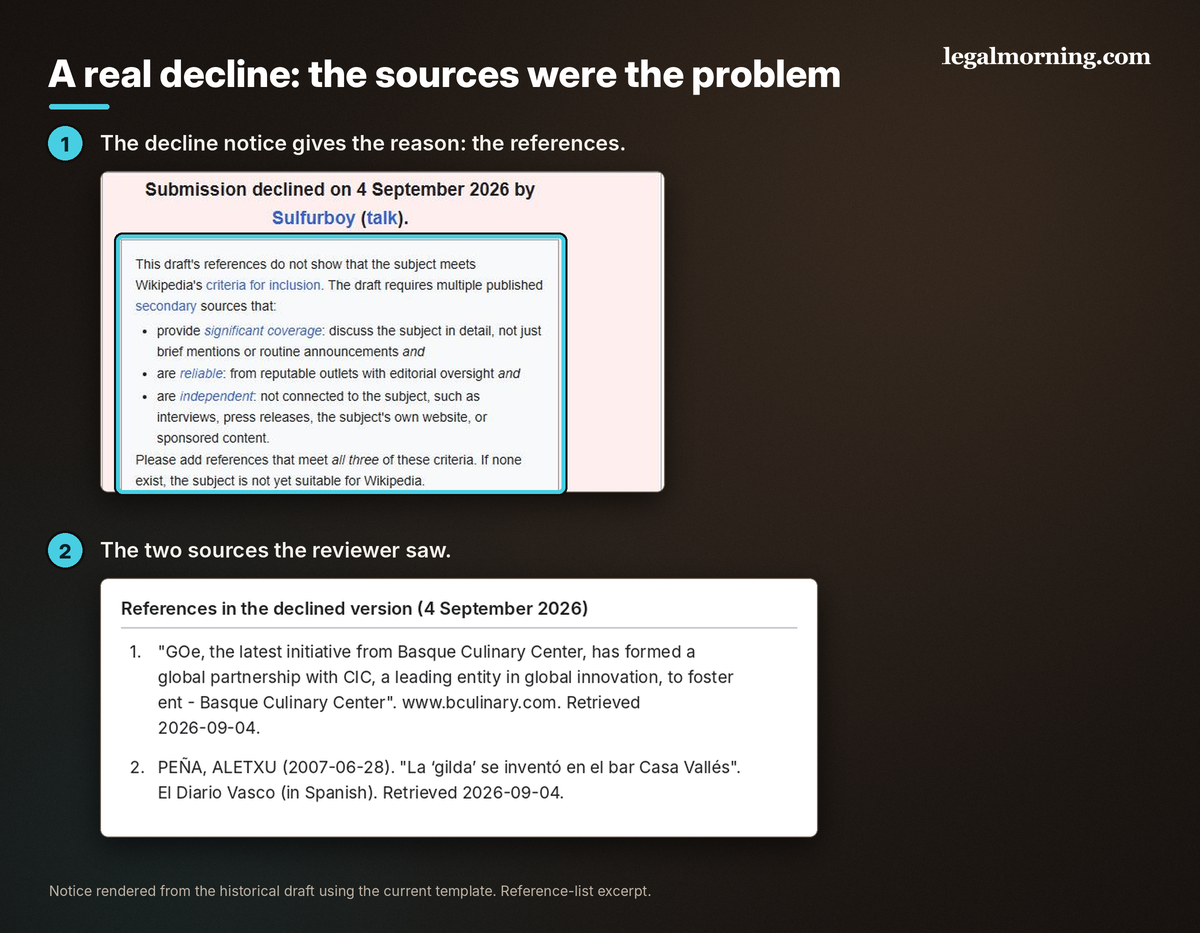
The standard notice identifies a sourcing problem. The assessment below explains what the two references contribute.
How I’d assess those sources
The draft had two references.
The first was a 2024 news post from the Basque Culinary Center about a business partnership. It mentions gildas once, in a list of snacks served at an event. That’s a passing mention.
The second was a 2007 article by Aletxu Peña in El Diario Vasco, a daily newspaper in San Sebastián. It’s real coverage of the snack: several paragraphs on how the gilda came about, what goes on the toothpick, and how it got its name from the 1946 Rita Hayworth film.
The piece centers on the bar’s anniversary, with much of the snack’s history attributed to the owners and the founder’s grandson.
That leaves one substantial newspaper story alongside a passing mention. I’d look for additional independent coverage of the snack before resubmitting.
What the fix looked like
Ten days later, the creator added two sources: a 1998 book on Basque cooking from The Harvard Common Press and a 2024 conference paper about anchovies. Then they resubmitted the same draft.
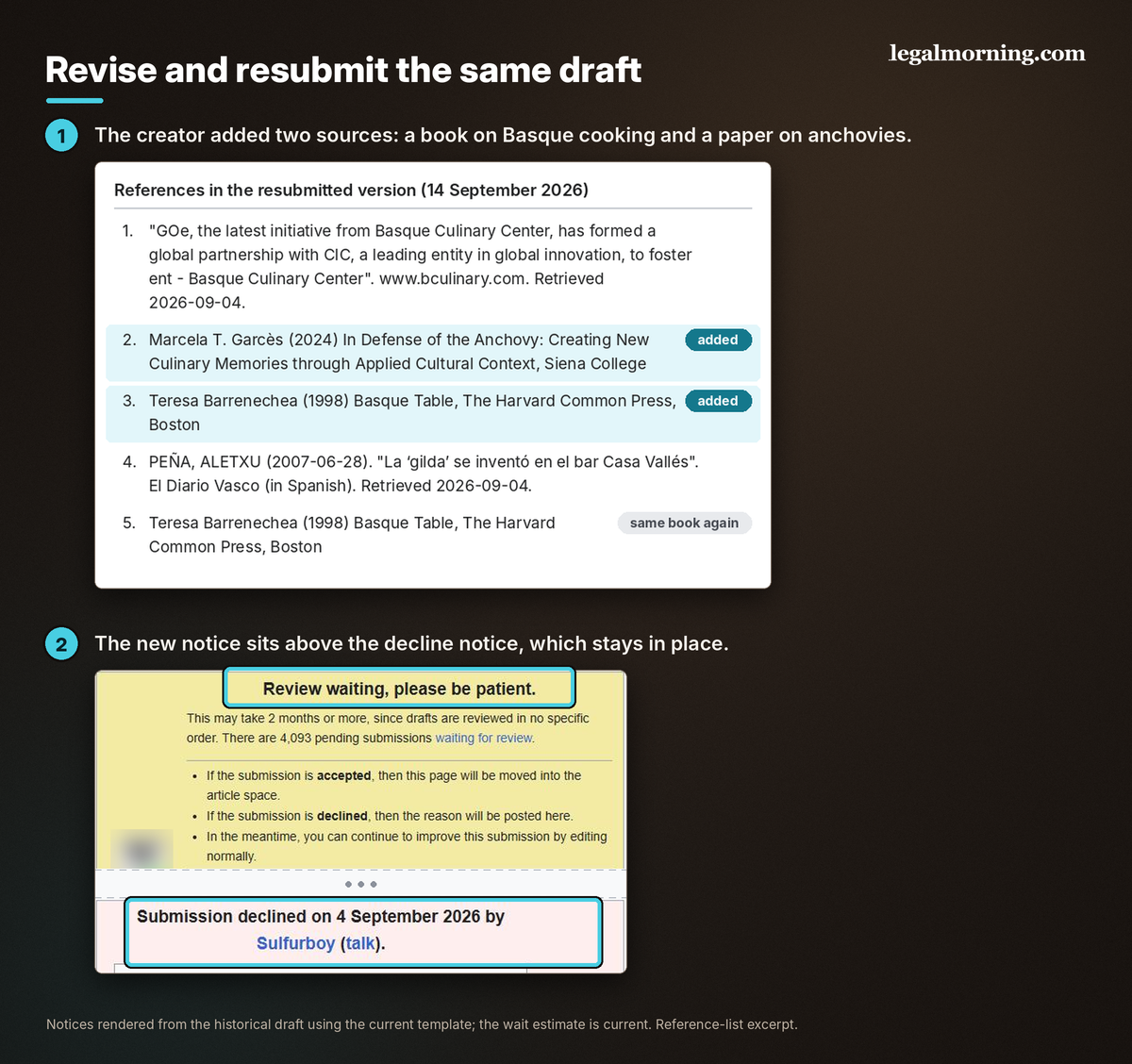
The accepting reviewer later completed the references, replaced the Basque Culinary Center link and added another source. The article was published as Gilda (snack) in November 2026.
How to revise and resubmit
- Open your draft and click Edit source.
- Fix what the reviewer named. Read the decline notice and any comment below it.
- Leave every review notice and comment in place.
- Click Publish changes.
- Click the Resubmit button in the decline notice.
Address the review before resubmitting. Repeated submissions that leave the problem unresolved can lead to deletion.
If your draft was rejected
Ask for reconsideration only if you’ve found significant new evidence, such as new in-depth independent coverage, or you believe the reviewer made a mistake. Ask the reviewer first, on their talk page, before you try to resubmit.
Step 7: How to Ask for Help at the AfC Help Desk
If the reviewer left you a specific comment you don’t understand, ask the reviewer. Their name and a talk link appear in the decline notice.
For another opinion about a draft or its review, ask at the AfC Help Desk. For general editing questions, try the Teahouse.
Click Ask a new question. On the form that opens, enter your draft’s title and your question, then click Submit. If the page shows a Click here to ask a new question button while the form loads, click it.
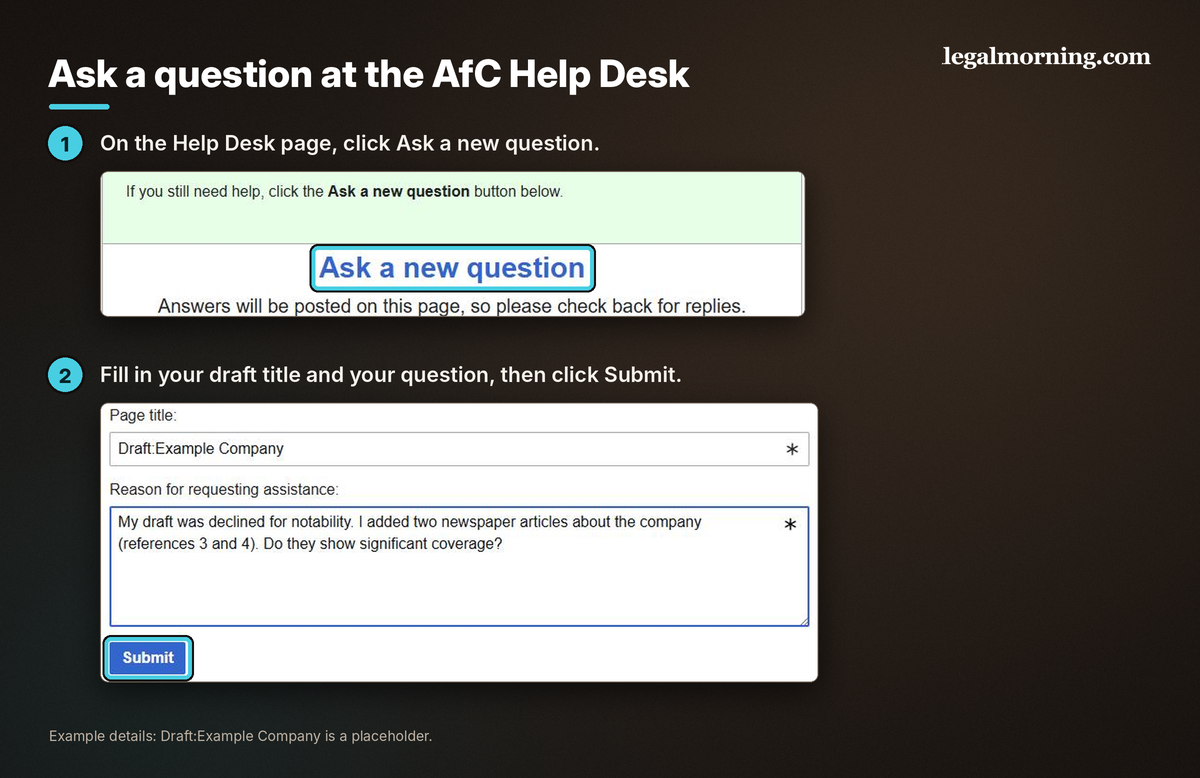
Answers are posted publicly on the Help Desk page, so check back there. Don’t post your email address or phone number.
How to get a useful answer
Keep your question short and specific:
- Link the draft.
- Quote the part of the review that confused you.
- Say what you’ve already changed.
- Ask one short question.
You can adapt this:
“My draft is [draft link]. The reviewer said the sources weren’t independent. I’ve removed the company press release. Does [source link] count as independent coverage, or am I misunderstanding the feedback?”
Give volunteers time to answer. Avoid complaints about the reviewer, comparisons to other articles, requests for faster review, and lengthy arguments over policy wording, often called “wikilawyering.” Keep the question focused on your draft.
More Wikipedia Guides
Guide to Wikipedia Notability
What notability means, what sources count, and how to qualify.
Simple Guide to Creating a Wikipedia Biography
What you need to know before creating a biography page.
Step-by-Step Guide to Creating a Company Wikipedia Page
How to create a Wikipedia page for your business.
Guide to Using Wikipedia in Education
How students and educators can use Wikipedia effectively.
Guide to Removing Negative Information from a Wikipedia Biography
What can be removed and how to do it correctly.
Removing Warning Tags
The most common Wikipedia cleanup and warning tags and how to clear them.
Disclosing a Conflict of Interest and Requesting Edits
How to disclose a connection and request changes the right way.
Ready to take control of your Wikipedia presence?
Start with a free project evaluation, no commitment required.