Guide to Disclosing a Wikipedia Conflict of Interest and Requesting Edits
Wikipedia conflict of interest disclosure comes before any edit request. You must disclose your conflict of interest to request changes to a Wikipedia article you have a connection to. Requests for changes must be posted on the article’s talk page for an uninvolved editor to review.
This guide covers English Wikipedia. Steps 1 to 7 explain how to disclose your connection and request changes to an existing article. The final section walks through creating a new draft with the Article Wizard and submitting it through Articles for Creation.
The instructions and graphics use the desktop interface. Button locations may vary with your screen size and settings.
Step 1: Identify the Connection You Need to Disclose
Wikipedia’s conflict of interest guideline covers personal, professional or financial connections that could affect your judgment when editing an article.
Common examples include:
- You are the subject of the article.
- The subject is a relative, a close friend or someone you work with.
- The subject is your employer, your client, or a business you own or invest in.
A conflict of interest describes your connection, not your honesty.
Paid contributions are one type of conflict of interest. Payment can include money, goods or services you receive or expect to receive for your contributions.
For unpaid connections, Wikipedia’s guideline says you should disclose. For paid contributions, the Wikimedia Foundation’s Terms of Use require it.
Find your situation below:
| Your situation | How Wikipedia treats it | What you disclose |
|---|---|---|
| You’re writing about yourself, a relative or a friend, and no one is paying you | Conflict of interest (unpaid) | Your connection to the subject |
| You own, invest in or work for the subject, but no one pays you to edit or promote it | Conflict of interest (financial) | Your connection to the subject |
| Editing or publicity work about the subject is part of your job | Paid contribution | Your employer, which is usually also the client and intended beneficiary, plus any other relevant affiliation |
| You work for a client, directly or through an agency, freelance platform or other go-between | Paid contribution | Your employer, the client, the intended beneficiary and any relevant affiliation |
When employees count as paid
English Wikipedia’s paid-contribution policy covers people paid for publicity work about a subject, even if they aren’t paid specifically to edit Wikipedia. It also covers interns expected to edit.
That includes a communications manager updating an employer’s article or a marketing assistant asked to fix the company’s page.
An employee editing an employer’s article on their own time still has a financial conflict of interest. Whether the work also counts as paid editing depends on its connection to the job, including any publicity duties.
Unsure which situation applies? Ask at the Teahouse, Wikipedia’s help forum for newer editors, before making a request.
Step 2: Set Up Your Account
Paid editors must use a registered account, not a temporary account assigned when editing while logged out.
Register even if you’re unpaid. It keeps your disclosure and requests under one username.
Create your account at Special:CreateAccount. Wikipedia’s username policy sets a few limits:
- Use an individual account. Don’t share it or its password.
- Avoid company, group or department names such as Acme Communications Team.
- A username identifying an individual, such as Jane at Acme, is allowed.
- Use the same account for your disclosure and requests.
You don’t need your real name as your username. Wikipedia discourages revealing identifying information because of harassment risks. Disclose your connection without adding unnecessary personal details.
Step 3: Disclose Your Connection on Your User Page
Know which page you’re using:
- Your user page (User:YourUsername): your standing disclosure.
- Your user talk page (User talk:YourUsername): messages other editors leave for you.
- The article’s talk page (Talk:Article Name): discussions and edit requests about that article.
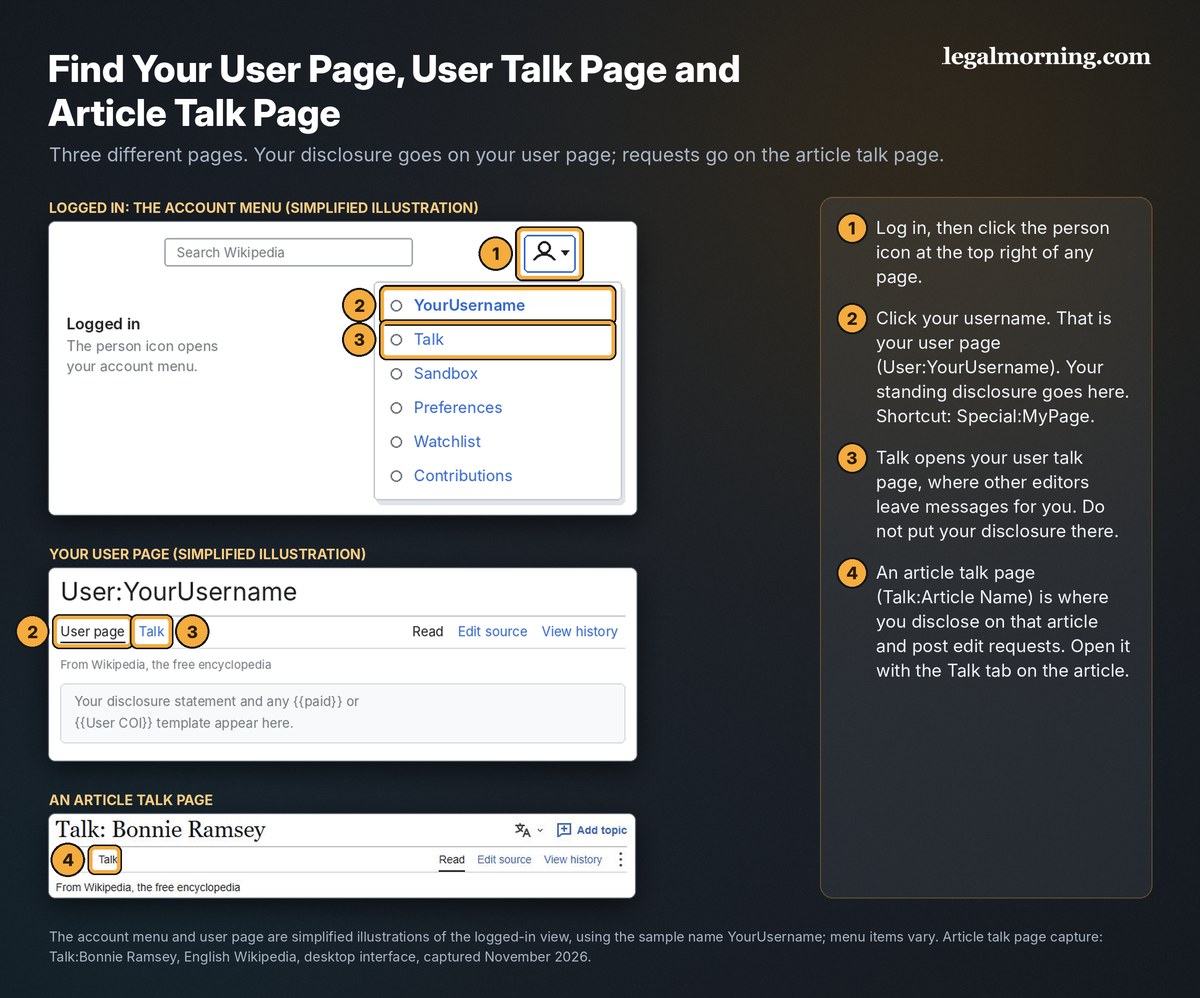
Open your user page
Log in, open the person icon at the top right, and click your username. Alternatively, Special:MyPage opens your user page directly.
If the page doesn’t exist yet, click Create or Create source. If it does, click Edit or Edit source.
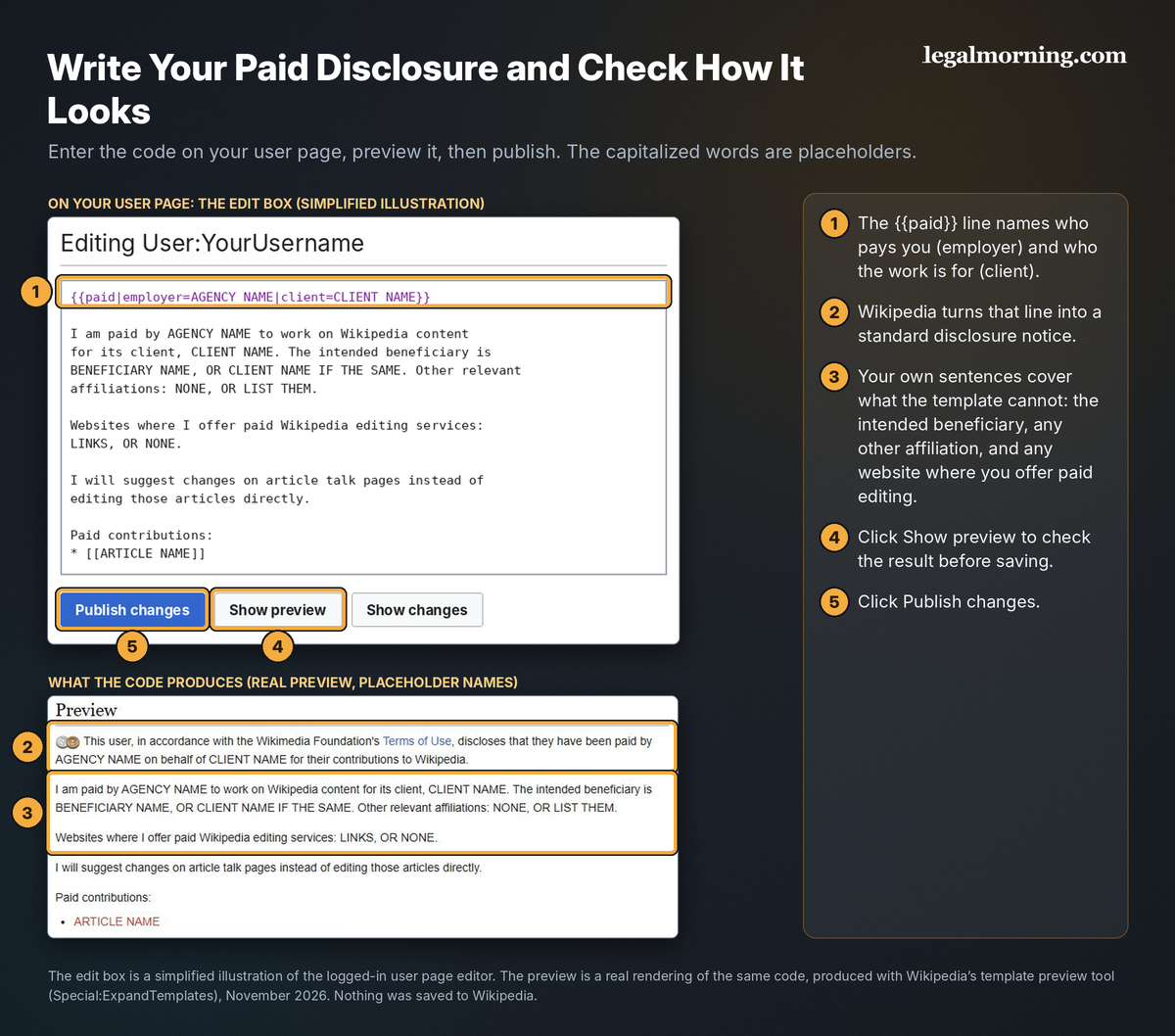
Type your disclosure, click Show preview to check it, then click Publish changes.
Example 1: Unpaid connection
Replace the capitalized placeholders. Keep the blank lines to separate paragraphs.
I have a conflict of interest regarding the Wikipedia article [[ARTICLE NAME]] because DESCRIBE YOUR CONNECTION.

I am not paid to edit Wikipedia. I will suggest changes on the talk page of that article instead of editing it directly.

{{User COI|ARTICLE NAME}}
For example, state “I am the subject of the article” or “the subject is my mother.”
The last line adds an optional disclosure box. Your written explanation states the connection.
Example 2: Employee
{{paid|employer=EMPLOYER NAME}}
I am employed by EMPLOYER NAME. My job includes communications work about the company, and I am paid for my contributions about it. EMPLOYER NAME is also the client and the intended beneficiary. Other relevant affiliations: NONE, OR LIST THEM.
I will suggest changes on article talk pages instead of editing those articles directly.
Paid contributions:
* [[ARTICLE NAME]]
In this example, the employer is also the client and intended beneficiary.
The {{paid}} template displays a notice naming the employer.
Example 3: Agency, consultant or freelancer working for a client
{{paid|employer=AGENCY NAME|client=CLIENT NAME}}
I am paid by AGENCY NAME to work on Wikipedia content for its client, CLIENT NAME. The intended beneficiary is BENEFICIARY NAME, OR CLIENT NAME IF THE SAME. Other relevant affiliations: NONE, OR LIST THEM.
Websites where I offer paid Wikipedia editing services: LINKS, OR NONE.
I will suggest changes on article talk pages instead of editing those articles directly.
Paid contributions:
* [[ARTICLE NAME]]
If a client hires you directly, use its name in the employer field and omit the client field. Explain any overlapping roles in your written disclosure.
The four roles in a paid disclosure
The Terms of Use require each employer, client, intended beneficiary and relevant affiliation:
- Employer: the person or organization paying you, directly or through an intermediary.
- Client: the person or organization the edits are made for, often the article’s subject.
- Intended beneficiary: who the work is meant to benefit. This may be the client.
- Affiliation: other relevant connections, including freelance brokers such as Upwork or Fiverr and anyone supplying text or images for the contribution.
Identify overlapping roles plainly:
- A doctor hiring a consultant directly for her biography may be the employer, client and intended beneficiary.
- An agency employee names the agency as employer and its customer as client. Name any other intended beneficiary too, if applicable.
- If hired through a freelance marketplace, disclose that connection.
The {{paid}} template has no intended-beneficiary field. Add that information in writing, as Examples 2 and 3 show.
Where the disclosure has to appear
The Terms of Use set a minimum. Paid contributors must disclose in at least one of three places:
- Your user page
- The talk page accompanying your paid contributions
- An edit summary accompanying your paid contributions
English Wikipedia’s guideline recommends fuller disclosure.
Paid editors should disclose on their user page, on each affected article’s talk page, and when discussing the topic. The guideline also calls for a visible list of paid contributions on the user page.
Three more rules apply to paid work:
- Link from your user page to active external accounts through which you advertise, solicit or obtain paid Wikipedia work.
- Public advertisements for paid Wikipedia services must identify the Wikipedia accounts used or to be used for that work under the Terms of Use.
- A client’s nondisclosure agreement does not override paid-disclosure requirements.
For unpaid connections, disclose whenever and wherever you discuss the topic.
A template doesn’t check your conflict of interest disclosure
A template displays what you enter. It does not check whether your disclosure is complete.
Two real conflict of interest disclosures
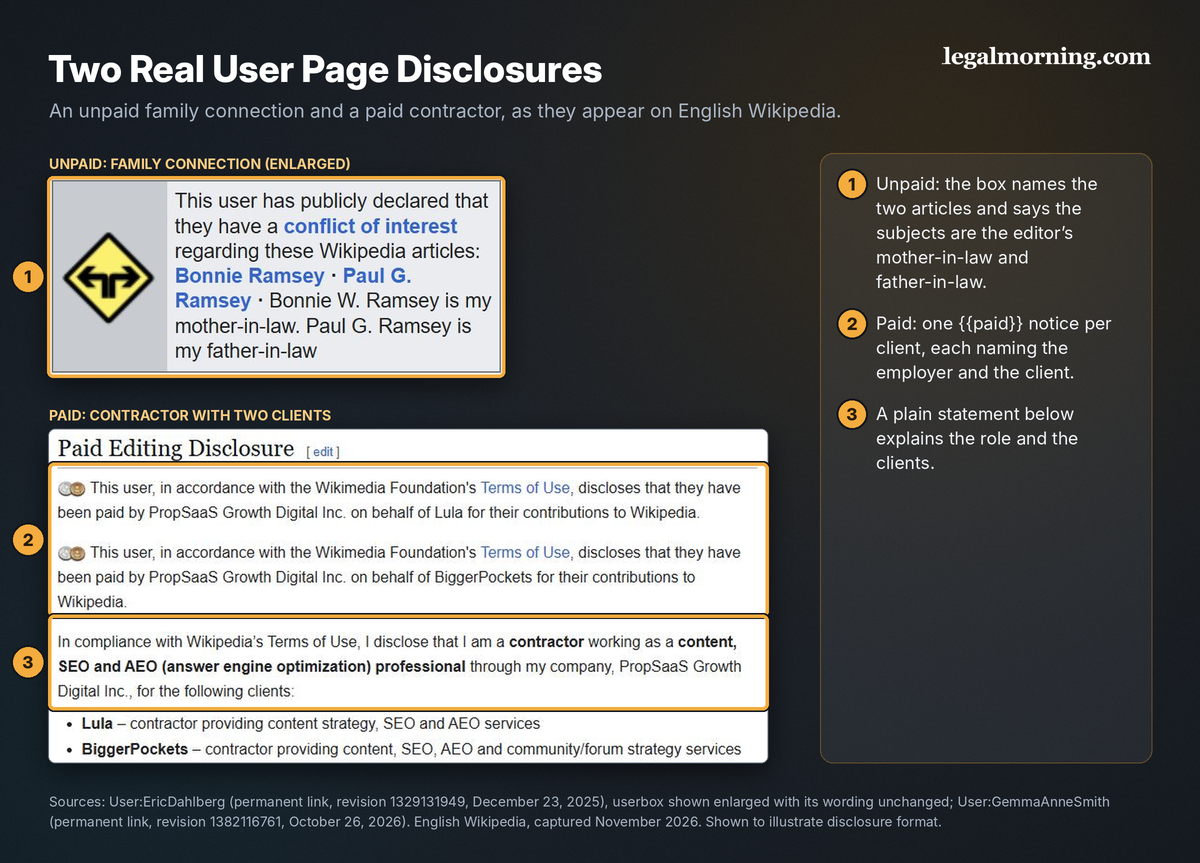
These public user pages show unpaid and paid disclosures.
One editor’s user page identifies the subjects of two articles as his mother-in-law and father-in-law. Both article talk pages also carry a connected-contributor box naming him.
A paid contractor’s user page has one {{paid}} notice per client, naming her company as employer, followed by an explanation of her work.
Step 4: Disclose on the Article’s Talk Page
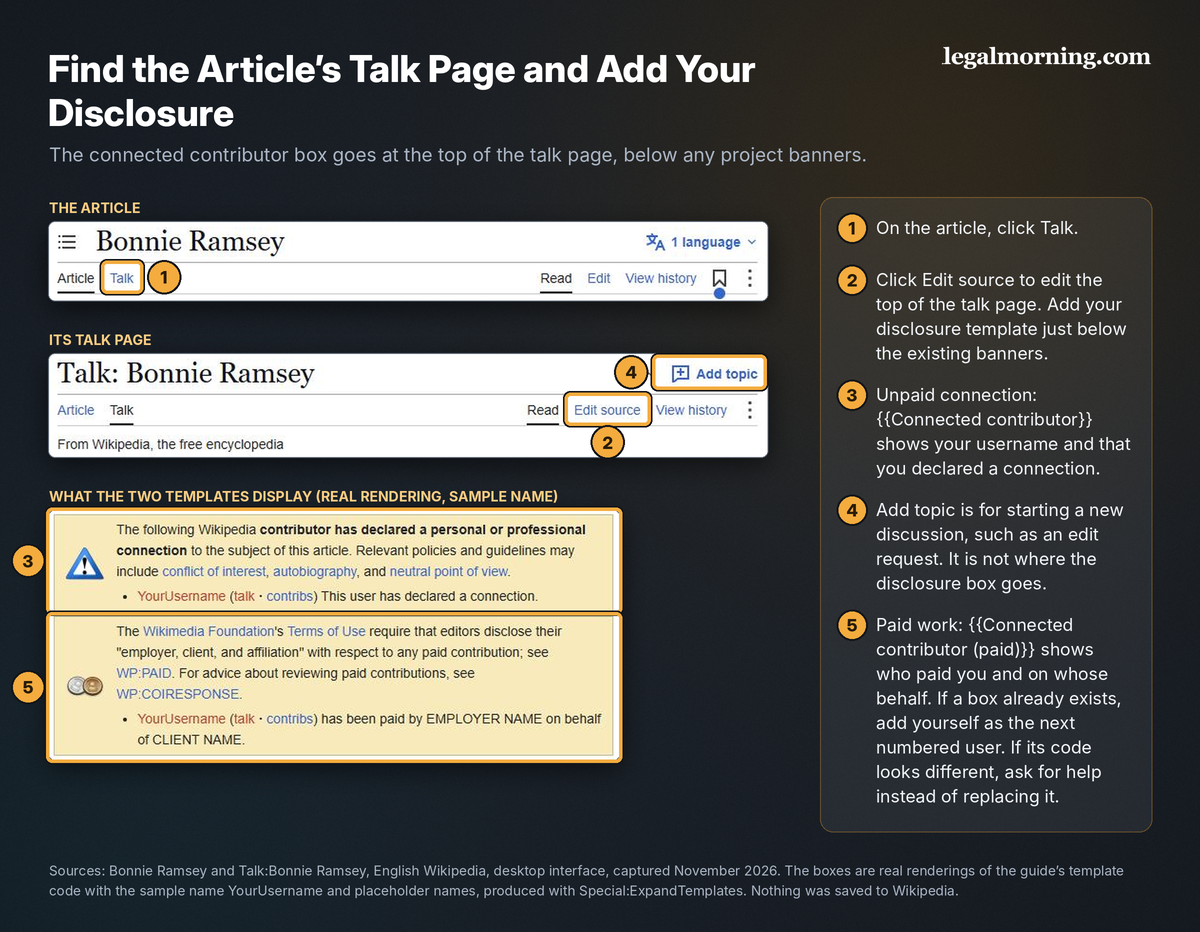
Open the article and click Talk next to Article.
Click Edit source to edit the talk page. Add the appropriate template below any existing banners at the top. Do not remove the banners or existing disclosures.
Click Show preview, then Publish changes.
Replace YourUsername and the capitalized placeholders with your details.
For paid work, use {{Connected contributor (paid)}}:
{{Connected contributor (paid)|User1=YourUsername|U1-employer=EMPLOYER NAME|U1-client=CLIENT NAME}}
This names you, your employer and your client. If employer and client are the same, fill in only the employer.
For an unpaid connection, use {{Connected contributor}}:
{{Connected contributor|User1=YourUsername|U1-declared=yes}}
This identifies you as a contributor with a declared connection.
Use U1-otherlinks for additional disclosure details or a link to your user-page statement.
If the talk page already has a box
Keep existing entries. Add yourself as the next numbered user inside the existing template, before its closing brackets. If one paid contributor is listed, add:
|User2=YourUsername|U2-employer=EMPLOYER NAME|U2-client=CLIENT NAME
For an unpaid connection, add |User2=YourUsername|U2-declared=yes. If User2 is already listed, use User3 and matching U3- parameters.
If the code differs or you can’t identify the next number, ask at the Teahouse before changing it.
Paid and unpaid disclosures use separate templates, so both can appear on one talk page. Other editors may help maintain them.
Three templates people confuse
Disclosure, request and warning templates have different purposes:
| Template | What it does | Where it goes | Who adds it |
|---|---|---|---|
{{Connected contributor}} or {{Connected contributor (paid)}} | Identifies you as a connected contributor | Top of the article’s talk page | You, or another editor |
{{edit COI}} | Asks a volunteer to review a specific change, and lists your request where reviewers look for one | At the start of your request, in a new talk page section | You, or the Edit Request Wizard for you |
{{COI}} | Warns readers that a major contributor appears to have a close connection with the subject | Top of the article itself | Other editors, as a maintenance tag |
The {{edit COI}} template adds your request to the category of conflict of interest edit requests monitored by volunteers. An ordinary talk-page comment alone is not added to that queue.
The {{COI}} article warning tag does not disclose your connection. Don’t add it as a disclosure.
Step 5: Prepare Your Edit Request
A reviewer needs six things from you:
- Location: where the text is, or where new text should go
- Existing text: the words currently in the article, if any
- Proposed text: the exact addition, replacement or text to remove
- Reason: a short explanation
- Source: support for each new claim, with its location in the source
- Connection: who you are in relation to the subject
Read the talk page first. Check whether your issue has already been discussed.
Why vague requests stall
“Please update my page” doesn’t identify the problem or proposed change. It leaves the reviewer to work that out.
“Remove the negative information” gives no content-based reason for deletion.
Reviewers can decline requests that are too vague.
Keep each request focused
Wikipedia’s simple conflict of interest edit request guide, an essay, recommends a single change per request. Focused requests are easier to assess.
Group closely related, straightforward corrections if you list each clearly. Put larger or disputed changes in separate requests.
Connect each source to the claim
Explain where the source supports your proposed wording. A link alone may leave the reviewer searching.
For example: “The second paragraph of this article reports her appointment as chief financial officer in March 2026.”
Wikipedia has a strict policy on verifiability that requires published, reliable support. The right source depends on the claim.
A subject’s own website may support routine facts within Wikipedia’s limits on sources about themselves. Use independent coverage for contested or evaluative claims, such as rankings or awards. Avoid promotional wording even when a source uses it.
There’s no required number of sources.
For removals, name the problem
A citation does not prevent removal, and a missing citation does not always require it. Explain the specific problem:
- The source isn’t reliable.
- The source doesn’t say what the article says.
- You can explain why unsupported material should be removed.
- Contentious material about a living person is unsourced or poorly sourced. Wikipedia’s policy on biographies of living people requires prompt removal of such material.
New information may call for an update rather than deletion. Previous roles and events can remain relevant as history.
Accurate, well-sourced criticism is different. Being the subject or their representative does not give you control over the article. The simple request guide notes that removing verifiable, neutral controversial material is rarely appropriate.
In November 2026, a user identifying himself as the founder of a research firm posted a request about Provogue, an Indian clothing retailer. He disclosed his connection to a report cited in the article.
He could not verify a ranking attributed to that report. The claim had carried a citation-needed tag since January 2016.
A reviewer removed the claim the same day.
The request identified a specific sourcing problem rather than objecting to unfavorable coverage.
Urgent errors about you or someone you know
The guideline allows urgent corrections to defamation or serious errors in an article about yourself or someone you know.
After making such a correction, contact the volunteer response team, ask at the biographies of living persons noticeboard, or explain on the article’s talk page.
This exception does not justify removing disputed or unfavorable material simply because the subject or a client objects.
Write it yourself
Write the request and proposed article text yourself. Wikipedia’s content guideline on large language models prohibits AI-generated or AI-rewritten article content, with limited exceptions for basic corrections and certain translations.
The paid Edit Request Wizard also asks for requests written in your own words. The simple request essay says AI-generated requests will be closed without action.
The request format
Use this as a blank outline for your own writing. Replace each capitalized placeholder:
{{edit COI}}
* Connection: I am DESCRIBE YOUR CONNECTION. My disclosure is on my user page.
* Location: SECTION NAME, sentence beginning FIRST FEW WORDS
* Current text: CURRENT SENTENCE, OR NOT IN THE ARTICLE NOW
* Proposed text: PROPOSED SENTENCE, OR REMOVE THIS SENTENCE
* Reason: WHY THE CHANGE IS NEEDED
* Source: AUTHOR, TITLE, PUBLICATION, DATE, URL. WHERE THE SOURCE SAYS IT.
Asterisks make separate bullets. Step 6 explains when to add your signature.
An October 2026 request on the BiggerPockets talk page quoted the current sentences, supplied replacements and citations, and explained why an unsourced, outdated clause should go. The requester was the paid contractor shown in Step 3.
A week later, a reviewer made the changes, then added tags questioning the company’s notability and the article’s press-release style.
A request can draw attention to other problems in the article.
Step 6: Submit the Request
Use the wizard if you’re new. The manual Add topic route is an alternative. Follow the instructions for your chosen editor; their preview and signature controls differ.
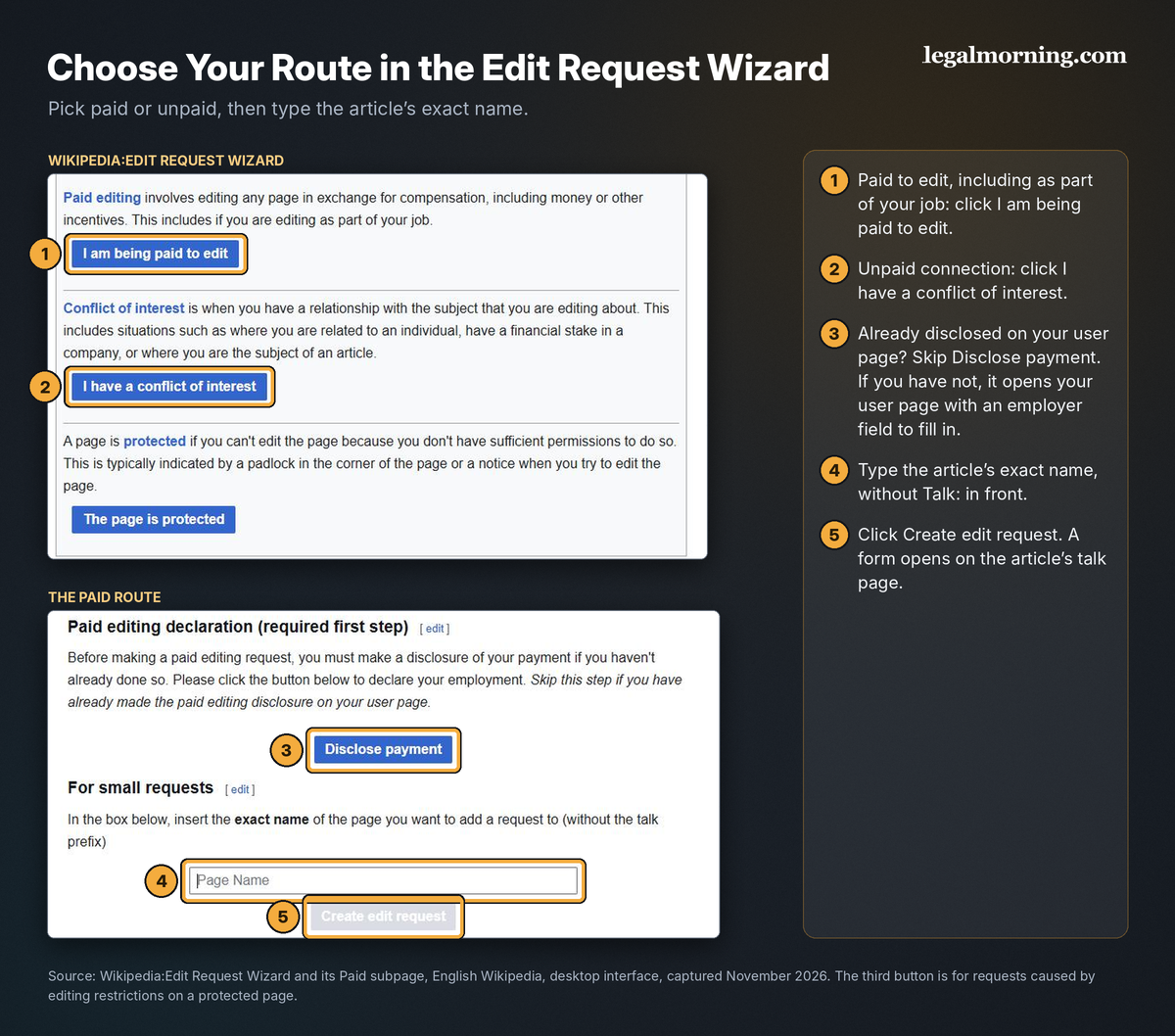
Route 1: The Edit Request Wizard
- Open the Edit Request Wizard while logged in.
- Choose I am being paid to edit (this includes editing as part of your job) or I have a conflict of interest.
- If your paid disclosure is already on your user page, skip Disclose payment.
- Type the article’s exact name in the small requests box, without Talk: in front.
- Click Create edit request. A form opens on the article’s talk page.
If you haven’t disclosed, Disclose payment opens your user-page editor with an employer placeholder.
Add |client=CLIENT NAME before the closing brackets if needed, along with your complete written disclosure from Step 3. Publish it, then return to the wizard.
For substantial changes, roughly more than a paragraph, the wizard has a large-request box intended for sparsely edited articles.
The third route addresses editing restrictions such as page protection. Your disclosure obligations still apply if the article is protected.
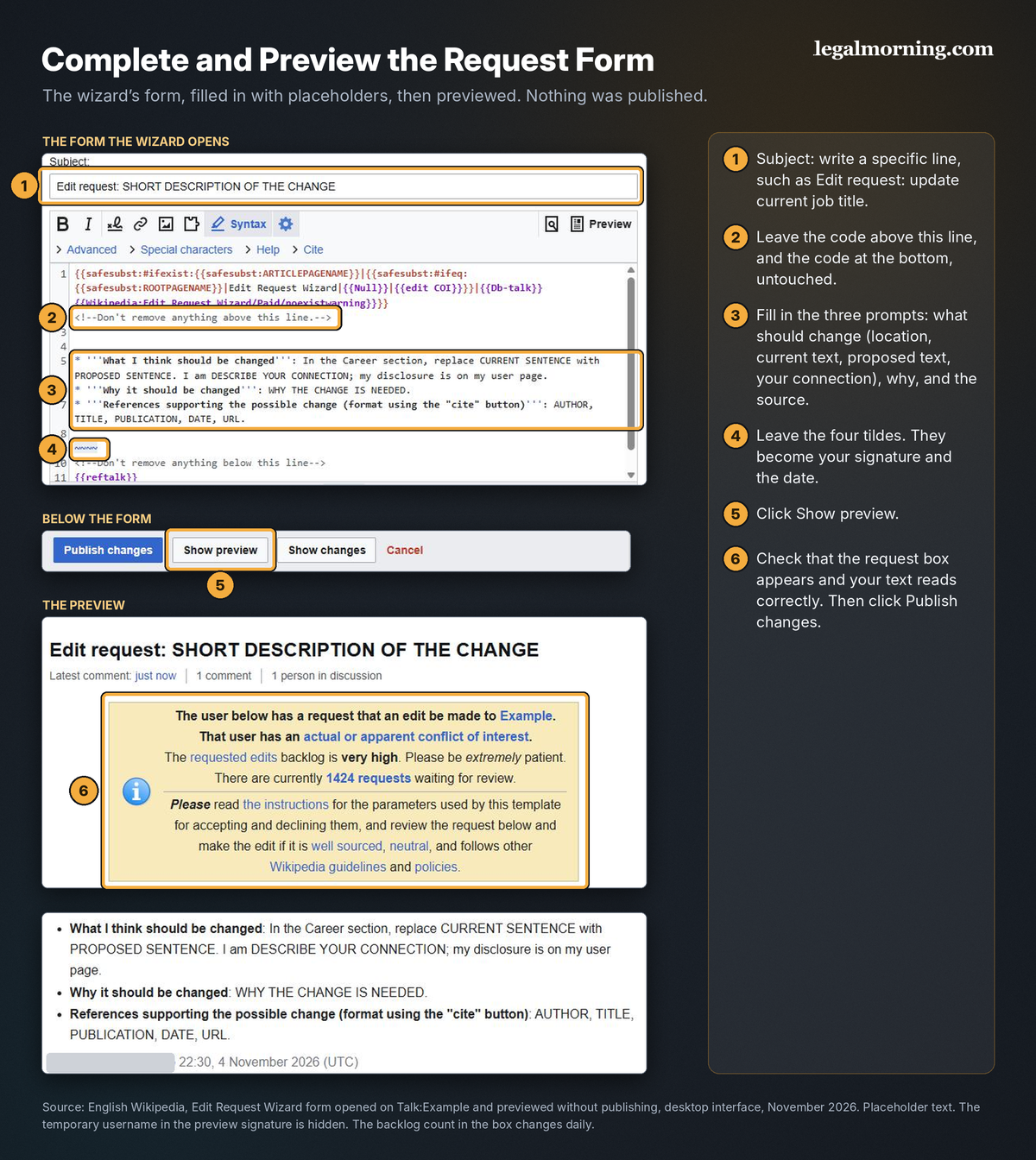
The form opens in the classic source editor:
- Type a specific subject in the Subject box, such as “Edit request: update current job title.”
- Keep the code above “Don’t remove anything above this line” and below the matching instruction at the bottom.
- Complete the prompts for the change, reason and references. Include the location, current wording, proposed wording and your connection under the first prompt.
- Leave the four tildes (~~~~) near the end. They become your signature and the date.
- Click Show preview. Check that the request box appears and your text reads correctly.
- Click Publish changes.
The unpaid large-request form lacks a separate references prompt. Include sources with your proposed changes.
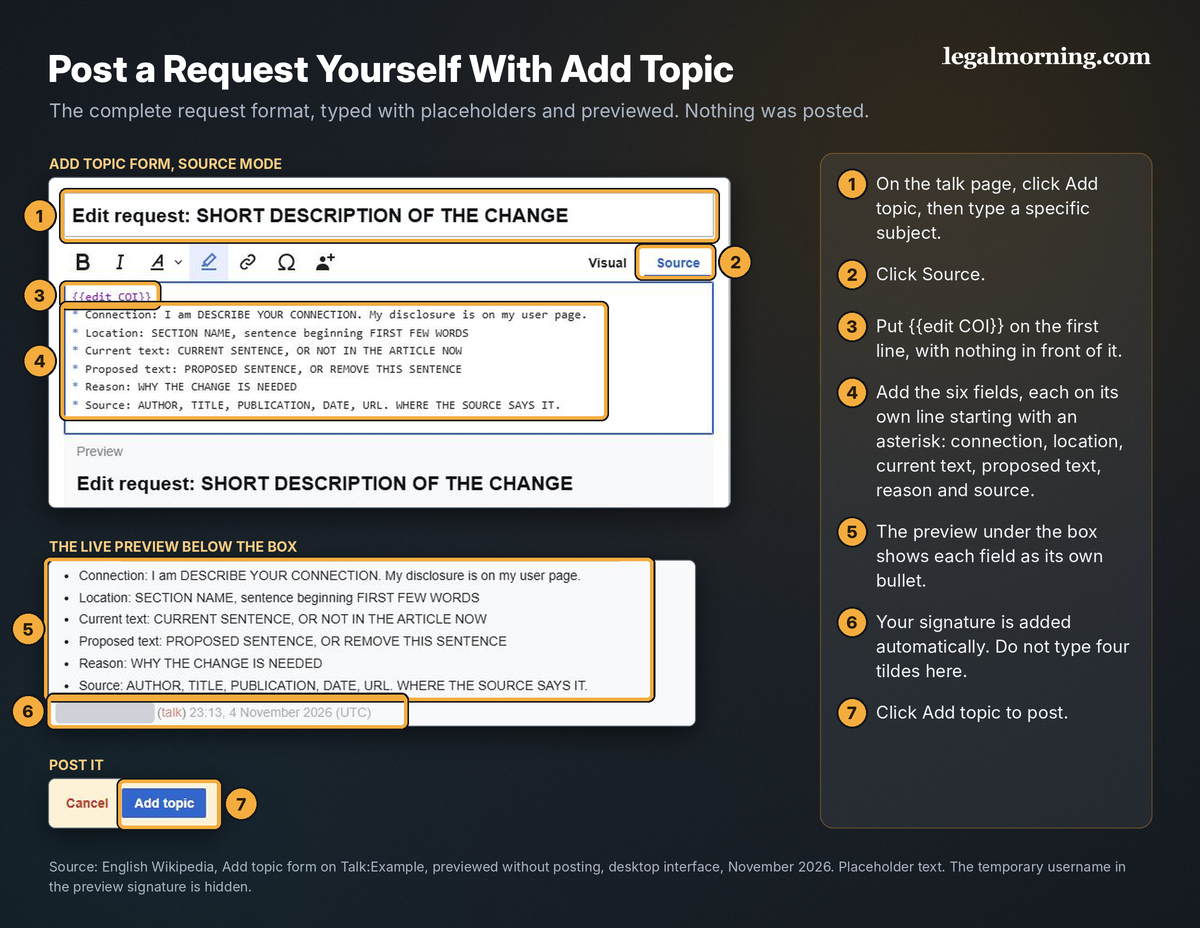
Route 2: Post it yourself with Add topic
- Open the article’s talk page and click Add topic.
- Type a specific subject.
- Click Source above the message box.
- Put {{edit COI}} on the first line, with nothing in front of it.
- Write your request underneath, using the format from Step 5.
- Check the preview that appears below the box as you type.
- Click Add topic.
This form adds your signature automatically, so don’t type four tildes.
Step 7: Follow the Discussion and Handle the Outcome
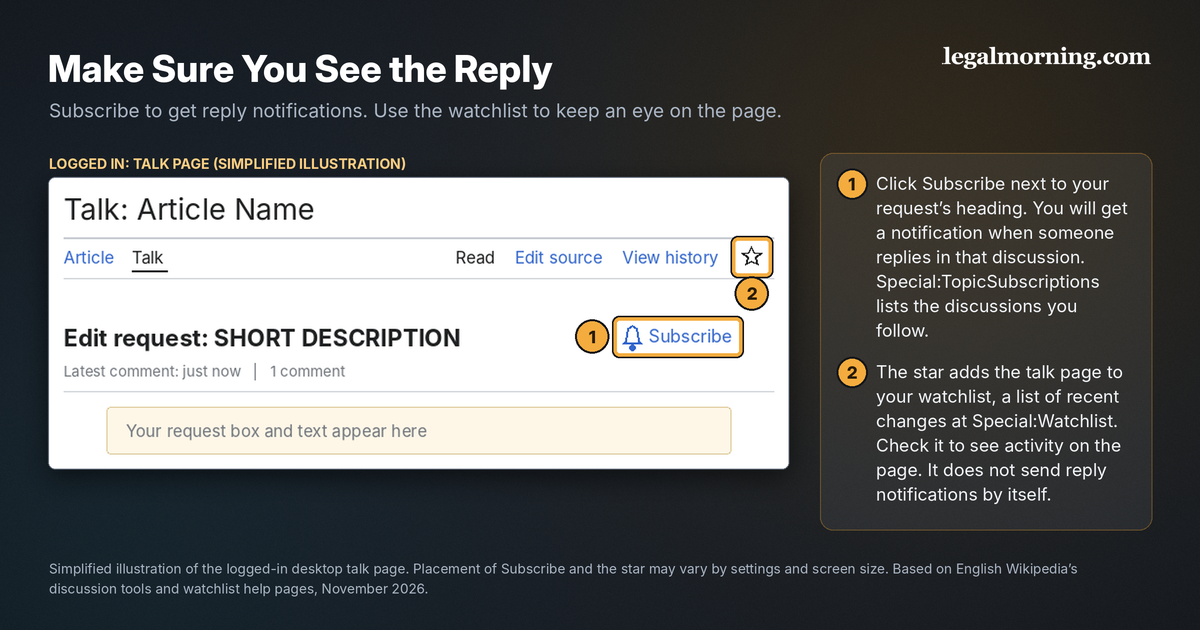
Make sure you see the reply
Click Subscribe beside your request’s heading for reply notifications. Special:TopicSubscriptions lists the discussions you follow.
Use the star to add the talk page to your watchlist and monitor its changes. Watching the page does not itself subscribe you to replies.
Some talk pages archive older discussions automatically. If your request disappears, check the archive links near the top.
What each outcome means
| What you see | What it means | What to do |
|---|---|---|
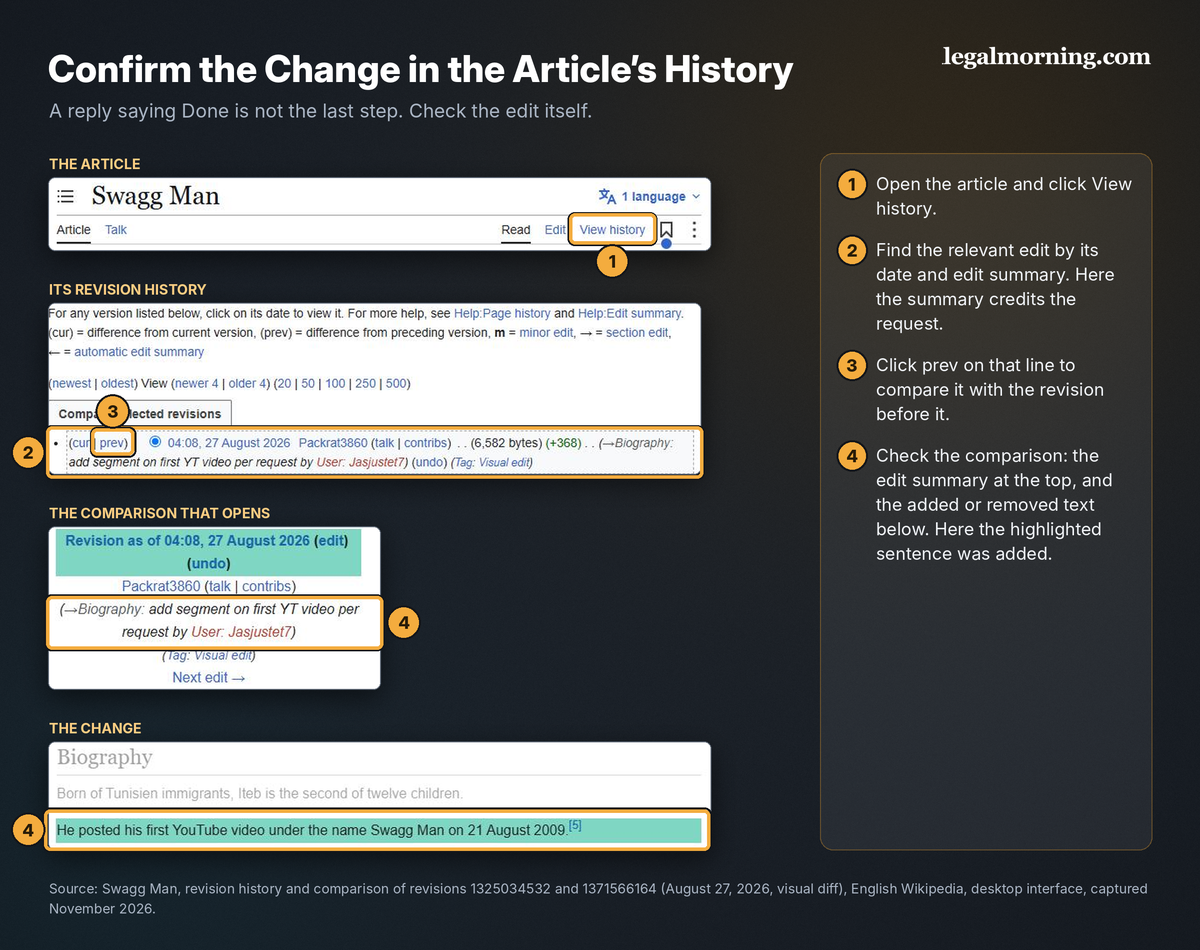
| Done, accepted, or a green check | A reviewer made the change | Open the article’s View history and confirm the edit |
| Partly done | Some changes were made, others weren’t | Read why; revise only the declined part, and only if you have something new |
| Not done or declined, often with a reason such as promotional tone, not verifiable, not specific, removes sourced content, or AI-generated | The change wasn’t made | Read the reason; fix the problem or accept the decision |
| A question from the reviewer | The request is on hold for you | Answer it, then reactivate the request if needed |
| No response | Your request is still waiting | Wait (see How long to wait below) |
Answered doesn’t mean accepted
Reviewers may mark a request answered when accepting it, declining it or asking for information. Posting a reply does not automatically change the template.
Read the response and check the article’s history to confirm what changed.
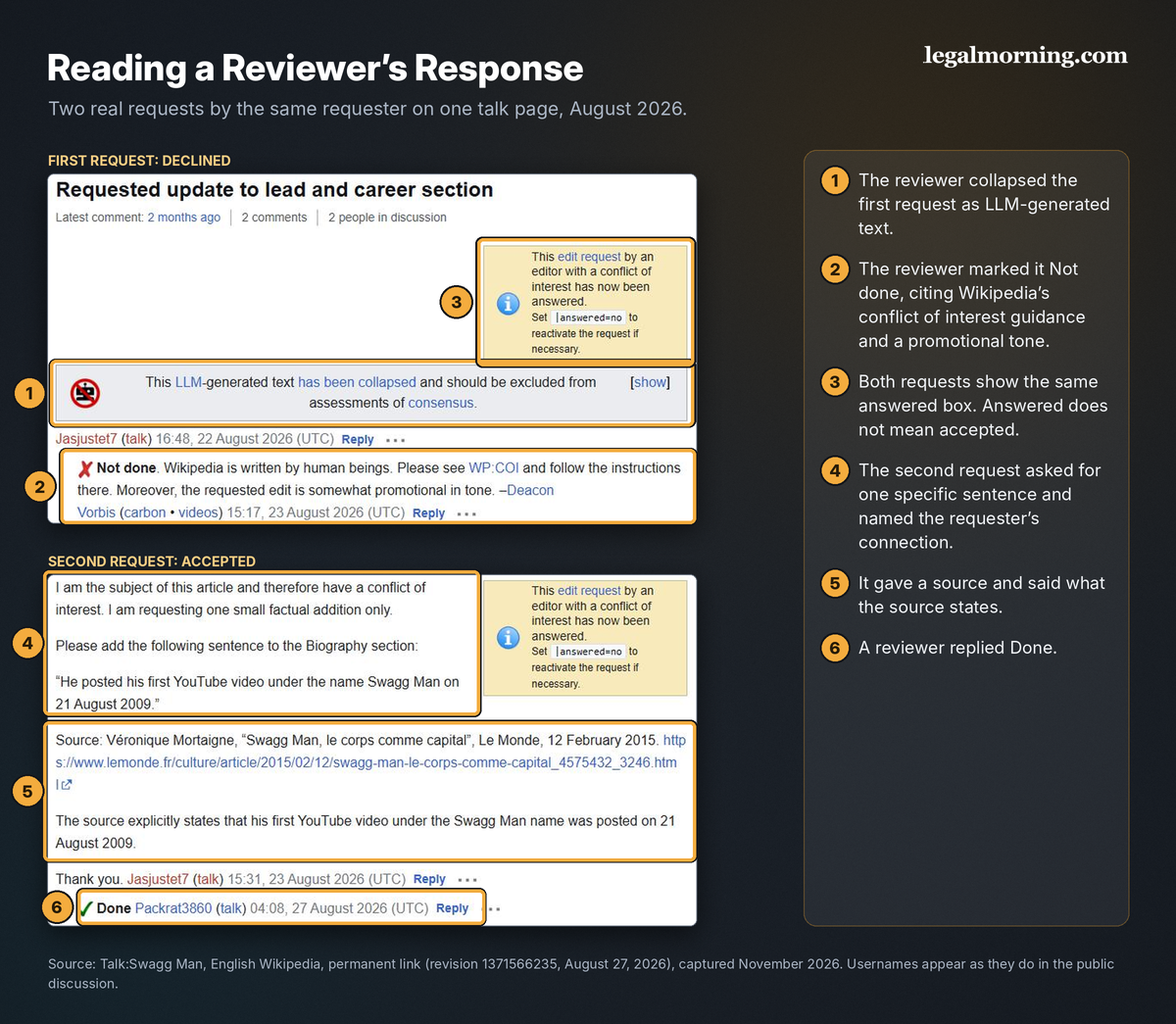
In August 2026, a requester identifying himself as Swagg Man asked to replace the article’s opening sentence with three sentences. The reviewer marked it not done and collapsed it as LLM-generated, also describing the wording as promotional.
The requester then asked for one sourced fact: the date of his first YouTube video under that name. He cited Le Monde and explained what it reported.
Four days later, another reviewer replied Done. The article history records the addition and credits the request.
Both requests display an answered box despite the different outcomes, so check the article’s history to confirm that a request marked approved was actually carried out.
When a reviewer asks for more information
Reply directly under the reviewer’s comment with what they asked for.
If the reviewer used answered=yes, open your section in Edit source and change it to answered=no inside {{edit COI}} after supplying the requested information. Publish the change.
If the template uses a response code instead, reply and ask the reviewer about reopening it rather than changing unfamiliar code.
Do not reopen a settled decline without new information.
Getting help from a WikiProject
WikiProjects are volunteer groups covering subjects such as film or medicine. An article’s talk-page banners often identify relevant projects.
After disclosing and posting a complete request, you can ask a related WikiProject for help.
For a filmmaker, that might be the talk page of WikiProject Film. The COI guideline suggests this route when an article has few uninvolved editors.
Ask a specific question about sourcing or your request. In your message:
- Say who you are and point to your disclosure.
- Link to your request instead of copying it.
- Ask one clear question, in neutral words.
Ask neutrally for help, not support for your preferred outcome. Wikipedia’s guideline on canvassing addresses attempts to sway discussions. Don’t repeatedly nudge editors for an answer.
How long to wait
Wikipedia’s edit requests page says responses can take a day to several months, particularly for COI requests. It asks requesters not to post reminders.
It advises treating a COI request unanswered after six months like a declined request. This is guidance, not an automatic closure.
A well-prepared request is more likely to receive a quicker response. Wikipedia’s simple request essay says uncontroversial changes requiring little volunteer review time are more likely to get a prompt reply. Reliable sources, neutral wording and clear formatting help reviewers assess your request.
What not to do
- Don’t post the same request again in a new section.
- Don’t copy the request onto other pages or message a string of editors about it.
- Keep discussions concise. Volunteers should not be expected to engage in long or repetitive exchanges with paid editors.
If you disagree, explain briefly with any new evidence. For an unresolved disagreement, consult Wikipedia’s dispute resolution process.
Additional Tips
Before posting, check these points:
- Use the strongest suitable sources. Prefer reliable, independent reporting, books or scholarly work over promotional material.
- Break large requests into manageable batches. Wikipedia warns that long, complicated requests can lose reviewers’ interest and remain unanswered. A wall of text is unlikely to get a quick review.
- Use neutral wording and clear formatting. Promotional copy is a common reason for declining requests.
- A paywall does not invalidate a source. The verifiability policy says difficult or costly access alone is no reason to reject it. Help reviewers with an accessible equivalent or an exact page or section reference. Don’t substitute a weaker source merely because it is free.
- Use the request process while review is pending. Don’t repeatedly restore changes another editor has removed; that can become edit warring and lead to a block.
- Don’t make legal threats on Wikipedia. They can lead to an editing block.
Creating a New Article Through Articles for Creation
For a new article, create a draft and submit it for review rather than requesting an edit.
Articles for Creation lets an uninvolved volunteer review a draft before it becomes an article. The COI guideline directs connected contributors to this process rather than creating articles directly.
If you have a conflict of interest, always start your draft with the Article Wizard. It asks about your connection, walks you through disclosure and sets the draft up for review.
Complete the user-page disclosure in Steps 1 to 3 first. The wizard does not replace it.
Before you start
- Search for existing articles and drafts, including alternative names. Use edit requests for an existing article; avoid creating a duplicate draft.
- Check notability. Most subjects need significant coverage in multiple reliable, independent, secondary sources.
- Find suitable sources before writing.
You can also propose the topic at Requested articles for someone else to consider writing. This does not guarantee that anyone will take it on.
Walk through the Article Wizard
- Log in and open the Article Wizard.
- Read the introductory and referencing advice, including notability, and follow Next to Common mistakes.
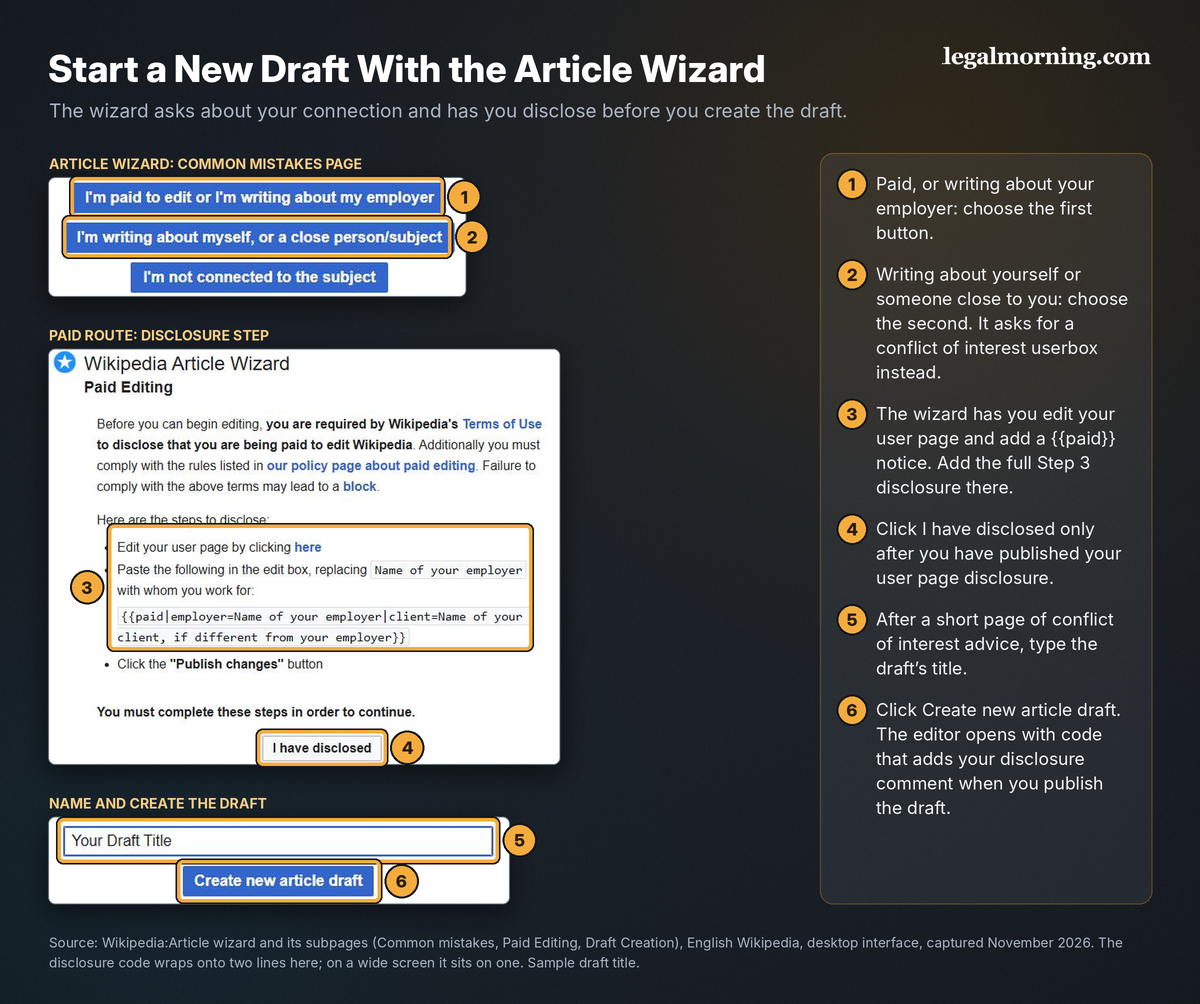
- On the Common mistakes page, choose your route. Click I’m paid to edit or I’m writing about my employer, or click I’m writing about myself, or a close person/subject.
- Complete the disclosure step on your user page, then click I have disclosed.
- Read the conflict of interest advice page and click Next.
- Type the draft’s title and click Create new article draft.
The third button, I’m not connected to the subject, bypasses disclosure. Do not choose it to avoid declaring a connection.
If your situation does not fit the wizard’s labels clearly, ask at the Teahouse. Do not make a false paid declaration; explain your actual relationship.
The disclosure step
The paid route tells you to publish a user-page disclosure naming your employer and client.
Use your complete Example 2 or 3 disclosure, including the intended beneficiary and other affiliations.
The unpaid route asks for a userbox identifying the proposed article:
{{UserboxCOI|1=YOUR DRAFT TITLE}}
{{UserboxCOI}} redirects to {{User COI}}, used in Example 1. Add your written explanation as well.
Click I have disclosed after publishing your disclosure. The link does not verify that you have done it.
What the wizard adds to your draft
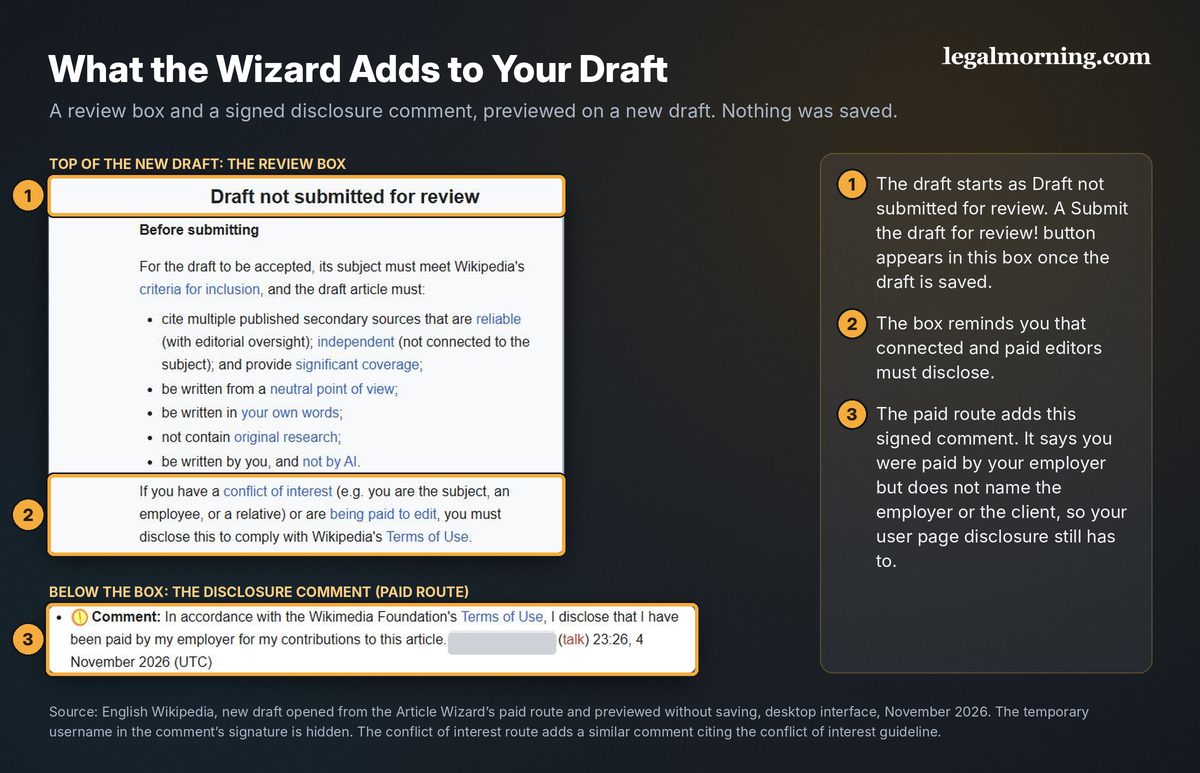
The wizard preloads two notices:
A review box marked Draft not submitted for review. Once you save the draft, it includes a Submit the draft for review! button.
A signed disclosure comment. The paid route states that your employer paid for your contributions; the unpaid route states your conflict of interest.
The automatic comment does not name all parties. Keep your complete disclosure on your user page.
Keep the review box, disclosure comment and the code above the “do not remove” instruction.
You can also add the appropriate connected-contributor box from Step 4 to the draft’s talk page.
Write and submit the draft
- Write in your own words, from a neutral point of view, with inline citations to reliable sources.
- Write it yourself. Wikipedia prohibits AI-generated or AI-rewritten article content, subject to its limited exceptions.
- Click Publish page to save. This does not submit the draft for review or publish it as an encyclopedia article. The draft is nevertheless publicly accessible; don’t include confidential information.
- When the draft is ready, click Submit the draft for review! in the box at the top.
If the button is missing, open the draft in the source editor, add {{subst:submit}} at the top, and publish. Ask the AfC Help desk if the submission box still does not appear.
Keep working on the draft. An abandoned AfC draft may be deleted after six months without an edit.
After you submit
There is no fixed review time. Drafts are not necessarily reviewed in submission order.
You may improve your draft while it waits. Save your changes, but don’t repeatedly resubmit or ask individual reviewers to hurry.
Do not review your own submission. Connected contributors should not review affected drafts; paid editors must not.
A reviewer will accept, decline or reject the draft:
| Outcome | What it means | What to do |
|---|---|---|
| Accepted | The draft is published as an article | Treat it like any existing article: disclose on its talk page (Step 4) and use edit requests for later changes |
| Declined | The draft isn’t ready yet, but the problems may be fixable | Fix the problems the reviewer named, then click Resubmit |
| Rejected | The reviewer considers the subject or content fundamentally unsuitable | Ask the reviewer to reconsider only if you have significant new evidence or believe the decision was mistaken |
Keep earlier review notices and comments when resubmitting. They document previous problems and help the next reviewer.
For help understanding a decision, use the Articles for Creation help desk linked from the review box.
Edit Request Checklist
- I know whether my connection is paid or unpaid.
- I have my own account with an allowed username.
- My user page states my connection. For paid work, it covers the employer, client, intended beneficiary and any affiliation.
- The article’s talk page shows my connection, usually in a connected contributor box, and my request states it too.
- My request gives the location, current text, proposed text, reason and source.
- I said where each source supports the claim.
- For a removal, I named the specific sourcing or content problem.
- I wrote the request myself.
- I previewed the request, published it and subscribed to the discussion.
New Article Checklist
- My user-page disclosure is complete.
- I used the Article Wizard and kept its review box and disclosure comment.
- The draft is neutral, written by me, and supported by reliable sources.
- I saved the draft and separately submitted it for review.
Summary
Wikipedia conflict of interest disclosure comes first: disclose your connection, then submit a specific request supported by reliable sources. The Edit Request Wizard helps you format it.
For a new article, disclose first, create the draft with the Article Wizard, and submit it through Articles for Creation.
Uninvolved volunteers assess the content and sources. Disclosure makes your connection clear; it does not guarantee acceptance.
Contact Legalmorning for a free evaluation of a proposed edit or new article.
More Wikipedia Guides
Guide to Wikipedia Notability
What notability means, what sources count, and how to qualify.
Simple Guide to Creating a Wikipedia Biography
What you need to know before creating a biography page.
Step-by-Step Guide to Creating a Company Wikipedia Page
How to create a Wikipedia page for your business.
Guide to Using Wikipedia in Education
How students and educators can use Wikipedia effectively.
Guide to Removing Negative Information from a Wikipedia Biography
What can be removed and how to do it correctly.
Removing Warning Tags
The most common Wikipedia cleanup and warning tags and how to clear them.
How to Submit an Article to Wikipedia
A visual walkthrough of Articles for Creation, from draft to submission.
Ready to take control of your Wikipedia presence?
Start with a free project evaluation, no commitment required.